Install Simple Host on DigitalOcean
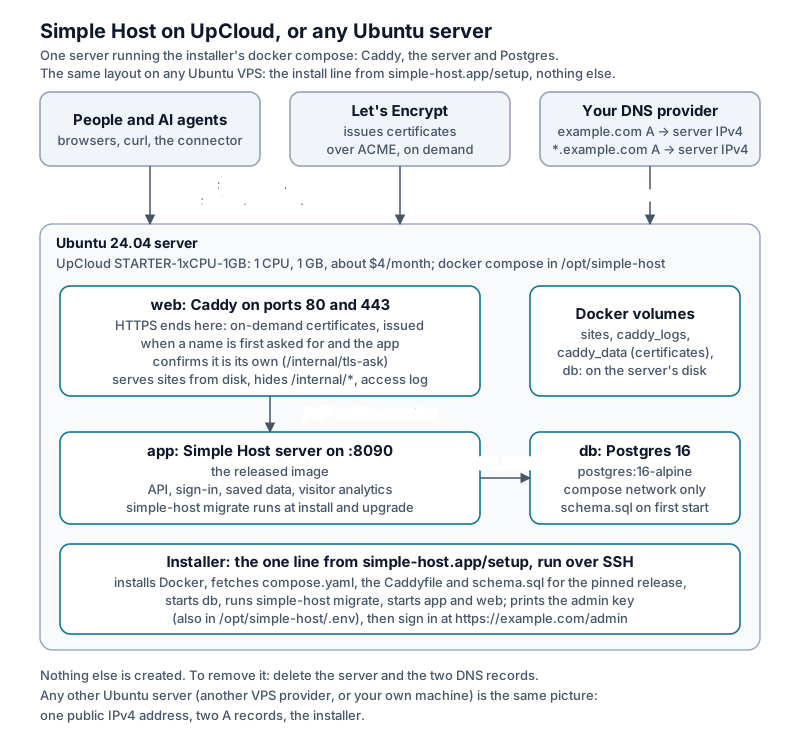
A droplet is an Ubuntu server like any other, so the small box runs on it with the standard installer: the same layout as on UpCloud. Start from the Simple Host 1-Click droplet, which asks for your domain when you first log in and runs the installer for you, or from a plain Ubuntu droplet where you run the installer yourself.
Cost
| Item | Size | Per month |
|---|---|---|
Droplet s-1vcpu-1gb |
1 CPU, 1 GB, 25 GB disk, one IPv4 address | $6 |
| Snapshot of the 1-Click image (only if you build it yourself) | a few GB | $0.06/GB a month |
The database, the web server and the sites all run on that one droplet. The $4 droplet has 512 MB, which is below what the small box needs. Weekly backups are optional and add 20%.
Until the image is listed in the Marketplace, build it into your own account.
With the 1-Click droplet
- In the DigitalOcean control panel, create a droplet from Simple Host
(Marketplace), or from your own snapshot (Snapshots tab): size
s-1vcpu-1gbor larger in any region, with your SSH key. - At your DNS provider, add two A records pointing at the droplet’s public
IPv4 address: your domain, and
*.<your domain>. If the sites address is not under your domain, add a third for it. - Log in as root:
ssh root@<droplet IP>. The setup starts by itself. It asks for the address (your domain) and the address sites are served from (sites.<your domain>unless you change it), checks that DNS points at the droplet, then runs the installer from its pinned release after checking its sha256. A dropped SSH connection does not stop the install. Setup runs until an install succeeds: if you stop it or the install fails, it runs again at your next login, or now with/opt/simple-host-setup/first-login.sh. - Open
https://<your domain>/adminand paste the admin key the installer printed (also kept asADMIN_API_KEYin/opt/simple-host/.env).
The droplet’s firewall (UFW) allows only SSH, HTTP and HTTPS. A port you later publish from a Docker container bypasses UFW.
Build the 1-Click image yourself
You need Packer and a DigitalOcean API token with an expiry (API → Tokens). From the repository root:
make -C deploy/digitalocean/droplet validateread -rsp 'DigitalOcean API token: ' DIGITALOCEAN_API_TOKEN && echo && export DIGITALOCEAN_API_TOKEN && make -C deploy/digitalocean/droplet build; unset DIGITALOCEAN_API_TOKENThe build provisions a temporary s-1vcpu-1gb droplet in nyc3 with Docker
and the release’s images, runs DigitalOcean’s cleanup and image checks on it,
and saves it as a snapshot named simple-host-24-04-snapshot-<time>. Packer
deletes the droplet afterwards. No admin key, password, certificate or database is in the image. The
installer makes them on the droplet at first login.
By hand
- In the DigitalOcean control panel, create a droplet: image Ubuntu 24.04
(LTS) x64, size
s-1vcpu-1gb, any region, and your SSH key. - At your DNS provider, add two A records pointing at the droplet’s public
IPv4 address: your domain, and
*.<your domain>. - Answer the questions at https://simple-host.app/setup?product=small-box with a server I already have, then run the install command it gives on the droplet over SSH. It fetches the installer from its pinned release and checks its sha256 before running it.
- Open
https://<your domain>/adminand paste the admin key the installer printed (also kept asADMIN_API_KEYin/opt/simple-host/.env).
If anything fails, paste the error at https://simple-host.app/setup?product=small-box#help.
Everyday operations
- Admin key lost:
grep ^ADMIN_API_KEY= /opt/simple-host/.envon the droplet. - Upgrade (1-Click):
/opt/simple-host-setup/upgrade.sh. It runs the installer that https://simple-host.app/setup pins (checked against its sha256) with the addresses from/opt/simple-host/.env, so they are kept, along with your data, key and settings. - Upgrade (by hand): answer the setup page again with the same domain and
sites address, and run the command it gives. It has to carry
--hostand--content: without them the installer empties both in.env.
Removing it
Destroy the droplet in the DigitalOcean control panel (Destroy → Destroy Droplet), with its backups and snapshots if you made any, then remove the DNS records. Nothing else was created.
Release notes: the changelog.